Lesson link not sent yet
Guide
How to share lesson materials with students, without sending files
The simplest way is to stop sending copies. Keep the materials in one place per student and give the student access to that place once. In Tuboard that is one link per workspace: the student opens it, types their name and sees the same topics, PDFs and boards you do, today and next month.
Updated
Students
Lessons, materials and progress for every student in one place.
My students
4+4
DA
SO
Past paper.pdf
Maria
Why sending files breaks down
Every attachment is a copy. The student edits theirs, you edit yours, and by Friday there are three versions of one essay in a thread between messages about moving the lesson. The worksheet from September is somewhere above them, and the board from the lesson was never sent at all.
- Each send creates another copy
- Old files sink up the thread
- The lesson's board stays on your screen
One link instead of a hundred attachments
In the student's workspace, press Send lesson link and paste it wherever you talk: the Zoom chat, WhatsApp or an email. The student opens it, types their name and lands in the workspace. The link works until you revoke it, so next week they open the same one.
- One link per workspace, valid until you revoke it
- The student types a name. No account, no app
- Editing or view only, your choice
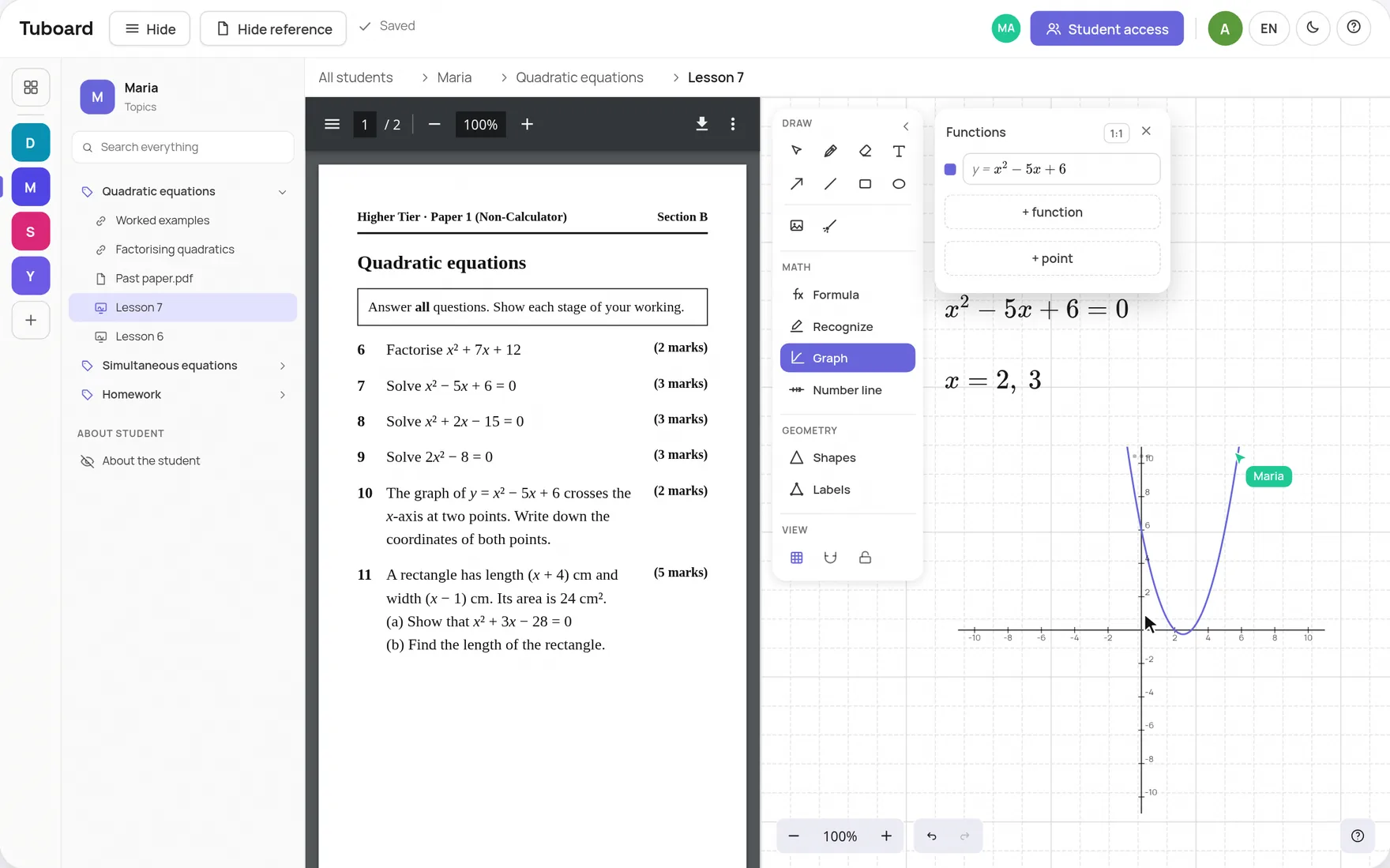
Homework without email
Give homework its own topic. The student opens the same link, writes the answers in a note or on a board in that topic, and you see them there before the next lesson. There is nothing to download, rename or send back.
- A homework topic in each workspace
- The student writes the answers in place
- You check them in the same topic
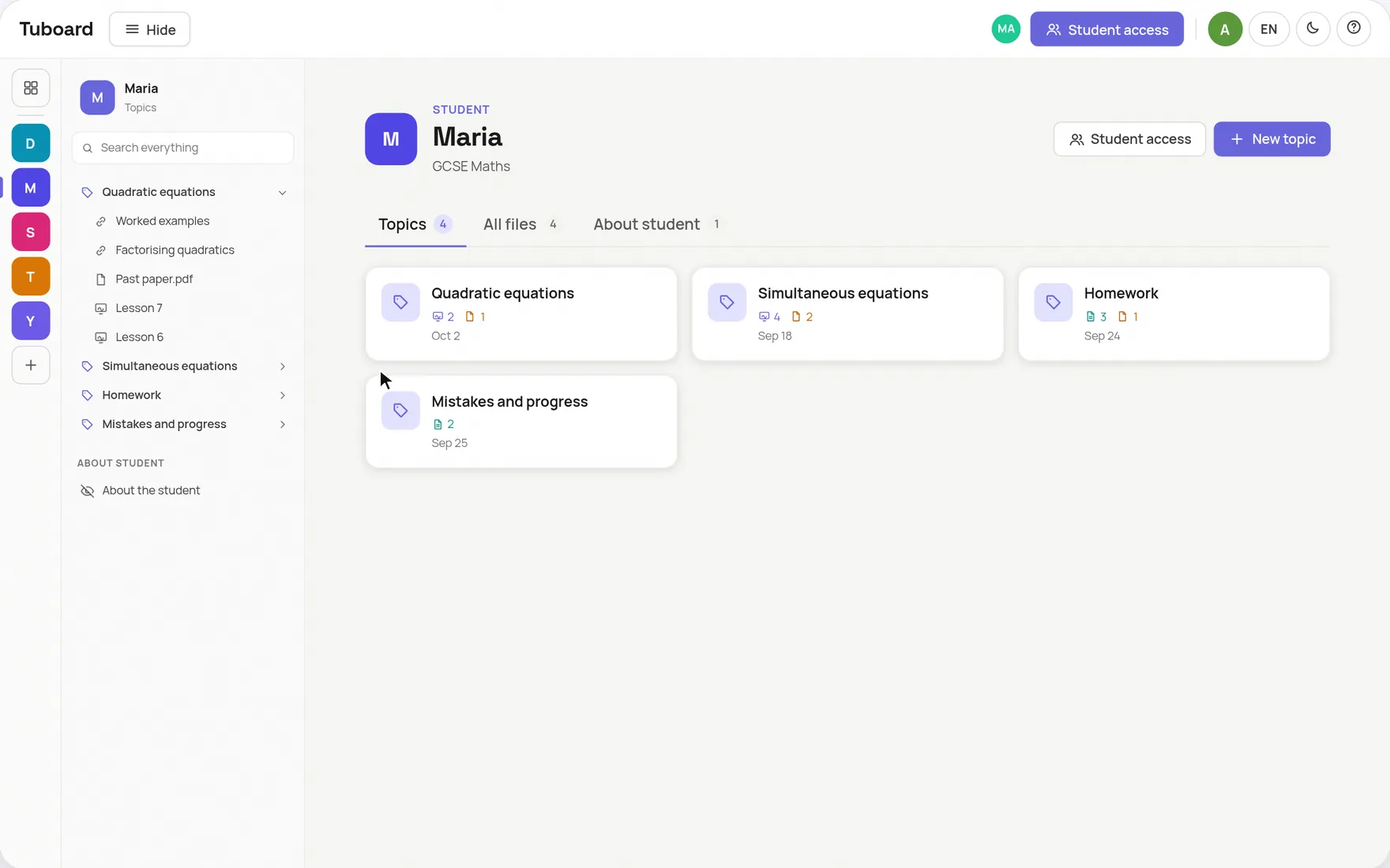
Sharing with a group
A group is one workspace. Every student gets the same link and works in the same topics.
One link for everyone
Send it to each student in the group. They each type their own name.
You see who is in
Names appear in the access list, and you can remove anyone.
Watch or edit
Switch the link to view only when you want the group to follow, not write.
Materials stay with the group
Next term's students start in their own workspace.
The short answers.
How do I share files with my tutoring students?
Put the files where the student can open them, instead of sending copies. In Tuboard you add them to a topic in the student's workspace and send one link. The student opens it and types their name.
How do I give homework to students online?
Make a homework topic in the student's workspace and put the task there. The student writes the answers in a note or on a board in that topic, and you read them before the lesson.
Do students need an account or an app?
Neither. The link opens in a browser and the student types their name. Signing in with Google is optional, for a student who wants to open the workspace from another device.
Can I stop a student's access?
Yes. Remove the student from the access list, or revoke the link and send a new one to the people who should keep it.
Can parents see the materials?
Anyone you send the link to can open the workspace, so a parent can follow the same link. There is no separate parent view.
Send one link this week.
Create a workspace for one student, put this week's materials in it, and send the link instead of the files.
How it works from the inside.
The student workspace
One workspace per student or group, sorted by topic, with the lesson inside it.
ExploreAn online whiteboard for maths
A PDF beside the board, formulas, graphs and labelled figures. The board lives in the student's topic.
ExploreFormulas and graphs
Fractions, roots, integrals and matrices from the keyboard. No LaTeX required.
ExploreInstead of Notion and Miro
Why general documents and whiteboards do not carry maths in a lesson.
ExploreGuides and comparisons.
A platform for private tutors
Store each student's materials and teach the lesson in the same place.
ExploreWhere to store tutoring materials
Drive, Notion, Dropbox, a messenger or a workspace per student, compared.
ExploreGoogle Classroom for tutors
What it does well, and a simpler option where students need no account.
ExploreNotion for tutors
What a tutor template does, and where the lesson falls out of it.
ExploreHow to teach maths online
A one-to-one setup that keeps the student writing, not watching.
ExploreFor English and IELTS tutors
Essays in one document, workbooks, videos and listening in the topic.
Explore