Lesson link not sent yet
Zoom and Google Meet
A whiteboard for tutoring over Zoom or Google Meet
Most online tutors keep the call they already have and put a whiteboard next to it. Tuboard is that board. Open it beside Zoom, Google Meet or any other call, paste the link into the chat, and your student writes on the same board. It has no video of its own, on purpose.
Updated
Students
Lessons, materials and progress for every student in one place.
My students
4+4
DA
SO
Past paper.pdf
Maria
What the Zoom whiteboard does, and where it stops
Zoom Whiteboard comes with Zoom and is fine for a quick sketch. New whiteboards are saved to your Zoom cloud and can be exported as a PDF. For a tutor who sees the same student every week, it runs short in four places.
Maths takes clicks
Equations are built from menus. There is no keyboard palette, no function graph, no labelled figure.
Boards are not kept by student
A board belongs to your Zoom account, apart from that student's notes and PDFs.
Sharing after the call depends on settings
Some Zoom accounts only share boards inside the organisation, which leaves your student out.
A screen share keeps the student watching
Share your own screen instead, and the student dictates while you write.
Google Meet has no whiteboard of its own now
Jamboard, the whiteboard that used to open from Meet, was shut down after 31 December 2024. Google now points to partner boards such as FigJam, Miro and Lucidspark, which are general tools for teams. Meet keeps the call, and the board has to come from somewhere else.
- Jamboard closed after 31 December 2024
- The suggested replacements are built for teams at work
- Your student still needs a way onto the board
Meet keeps the call
Video, chat and screen sharing stay exactly as they are.
The board arrives as a link
Paste it into the Meet chat. Your student opens it in a new tab.
How a lesson runs with Tuboard beside the call
Start the call as usual. Open the student's workspace in Tuboard, press Send lesson link and paste the link into the Zoom or Meet chat. Your student opens it, types their name and is on the board with you. Nobody shares a screen: each of you sees the board in your own browser and writes on it.
- Start Zoom or Meet as usual
- Paste the lesson link into the call's chat
- Your student types their name and writes with you
- End the call, and the board stays in the student's topic
What the board has for maths
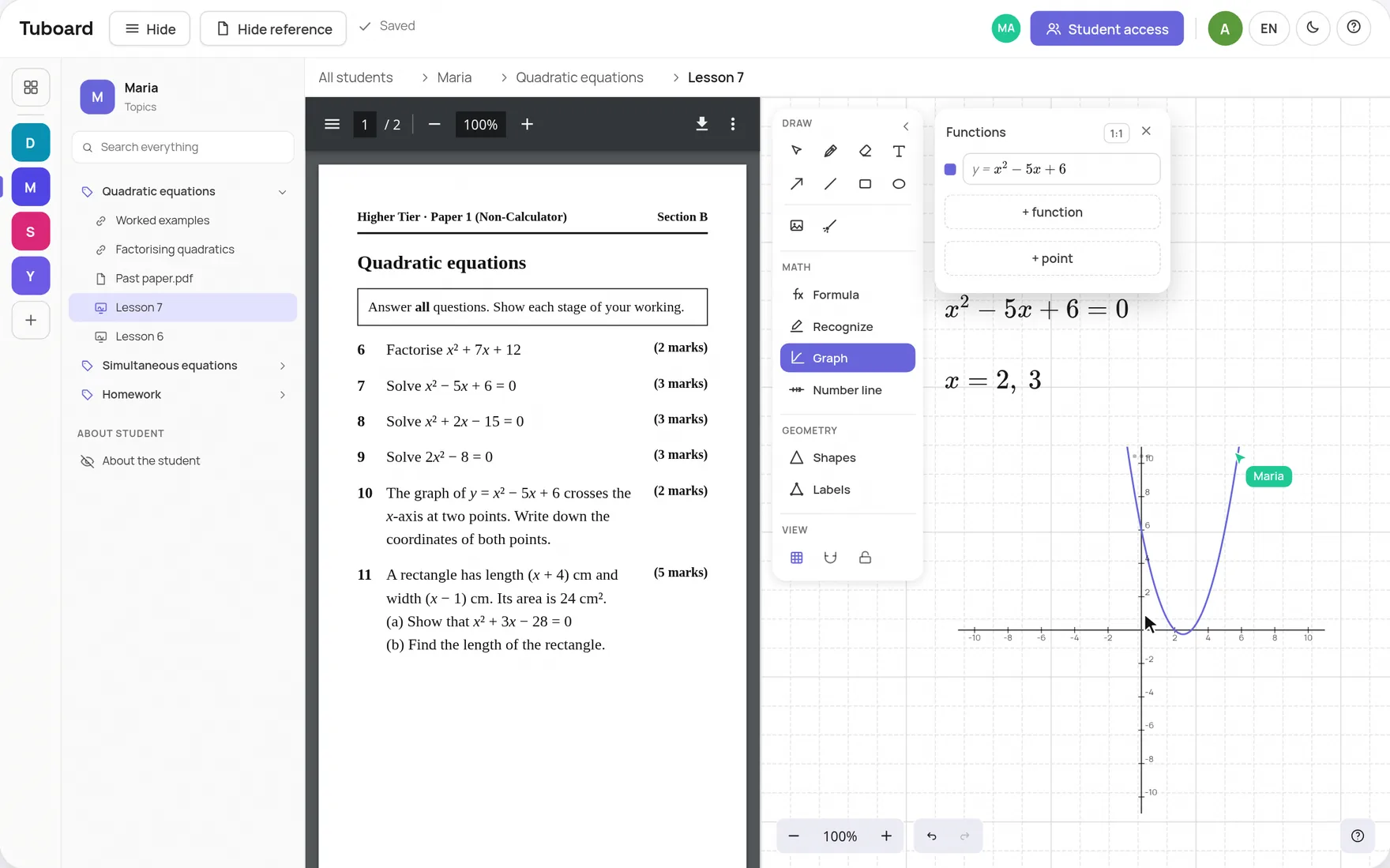
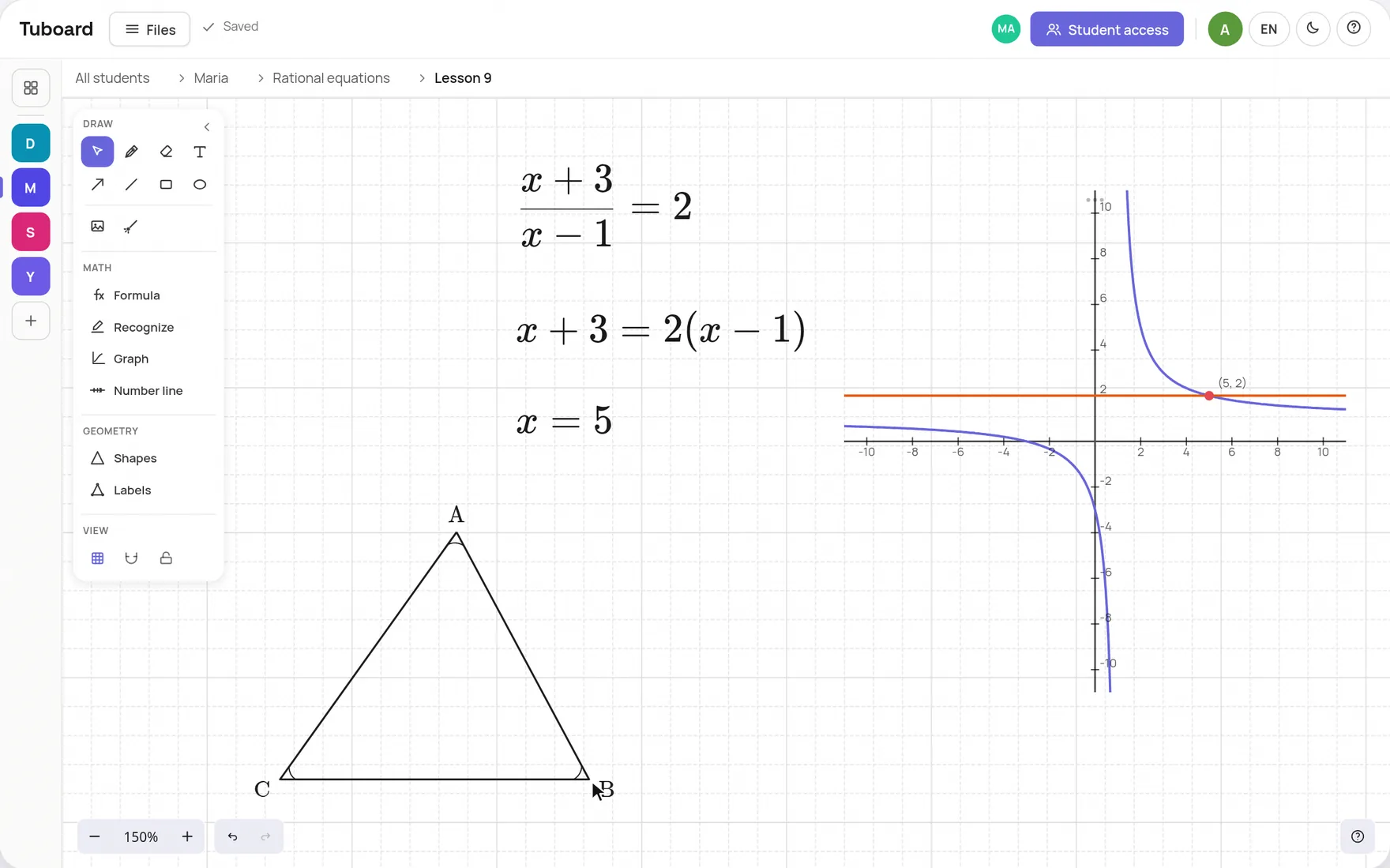
Formulas come from a palette by the cursor, with no LaTeX required, though LaTeX works if you prefer it. Function graphs sit beside the working, number lines handle inequalities, and triangles arrive with their corners labelled. A past paper or textbook PDF opens beside the board.
- Press M for a formula, Enter for the next line
- Type x^2 or sin(x) and the graph is plotted
- The past paper stays open beside the board
The short answers.
Can I use Tuboard during a Zoom call?
Yes. Tuboard runs in a browser tab next to Zoom. You do not share your screen: you send your student the lesson link and you both work on the board.
Does it work with Google Meet and Microsoft Teams?
Yes, and with any other call. Tuboard has no video, so it does not matter what you call on. Paste the link into whichever chat you use.
Does my student need an account?
No. They open the link and type their name. You sign in with Google once, so that you can send links.
Is the Zoom whiteboard saved after the meeting?
New Zoom whiteboards are saved in the Zoom cloud and can be exported as a PDF. How long they are kept and who can open them depends on your Zoom account's settings, so check those before you rely on them for a student's history.
Is Tuboard free?
Free while Tuboard is in beta. A free account can create and edit 3 workspaces. Tutor Pro is planned at about $10 a month and is not open yet.
Keep your call. Add the board.
Open a board now. When you invite a student, it goes into their workspace.
How it works from the inside.
The student workspace
One workspace per student or group, sorted by topic, with the lesson inside it.
ExploreAn online whiteboard for maths
A PDF beside the board, formulas, graphs and labelled figures. The board lives in the student's topic.
ExploreFormulas and graphs
Fractions, roots, integrals and matrices from the keyboard. No LaTeX required.
ExploreInstead of Notion and Miro
Why general documents and whiteboards do not carry maths in a lesson.
ExploreGuides and comparisons.
How to organise tutoring materials
One place per student, split by topic, with the lesson taught from it.
ExploreWhiteboards for tutoring, compared
Tuboard, Bitpaper, Lessonspace, Zoom, Miro and Excalidraw side by side.
ExploreA Bitpaper alternative
Free in beta and organised by student, with the call left to Zoom or Meet.
ExploreA Jamboard alternative
A board students open from a link, with maths tools Jamboard never had.
ExploreExcalidraw with maths
Formulas, LaTeX, graphs and labelled figures on an Excalidraw board.
Explore